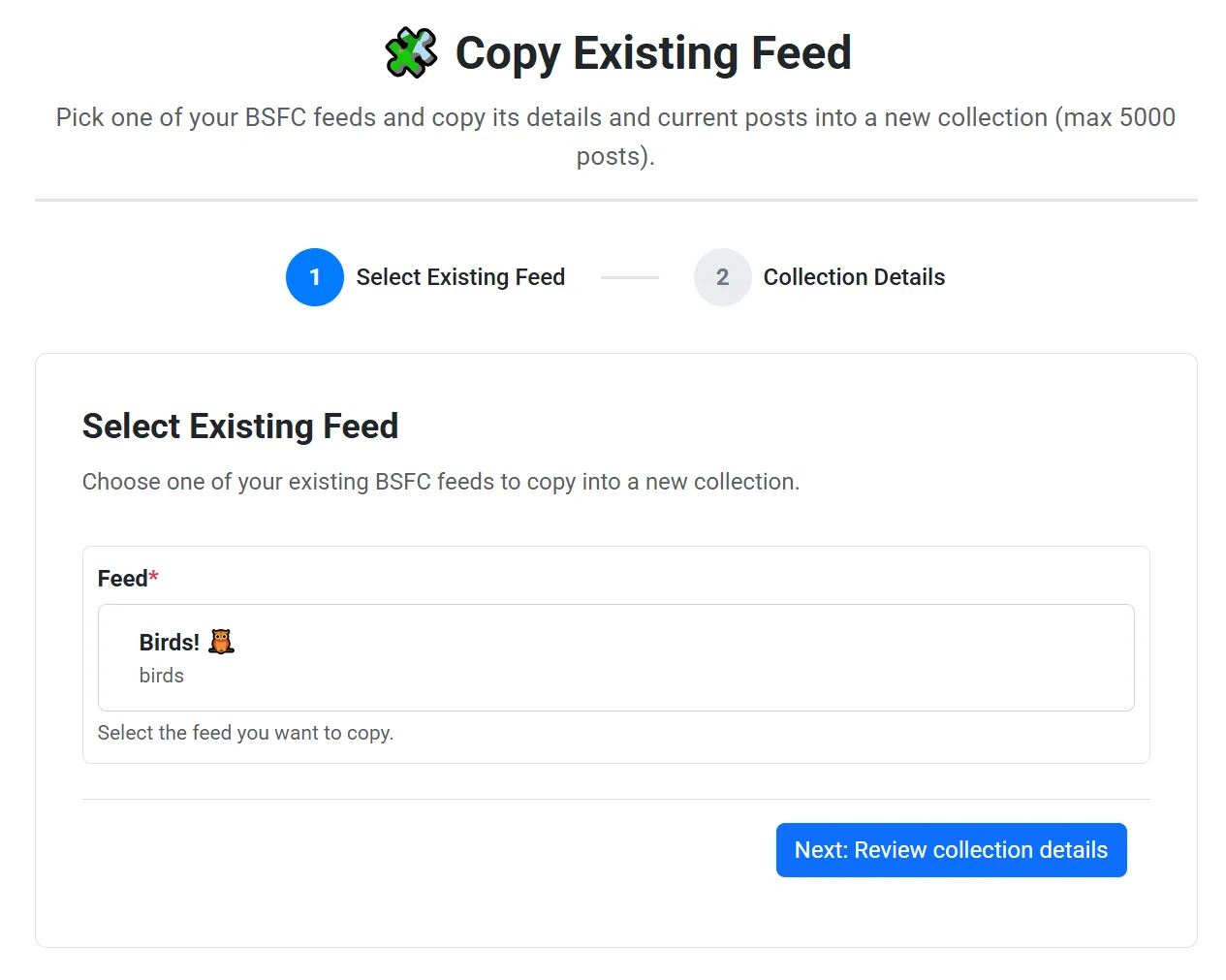
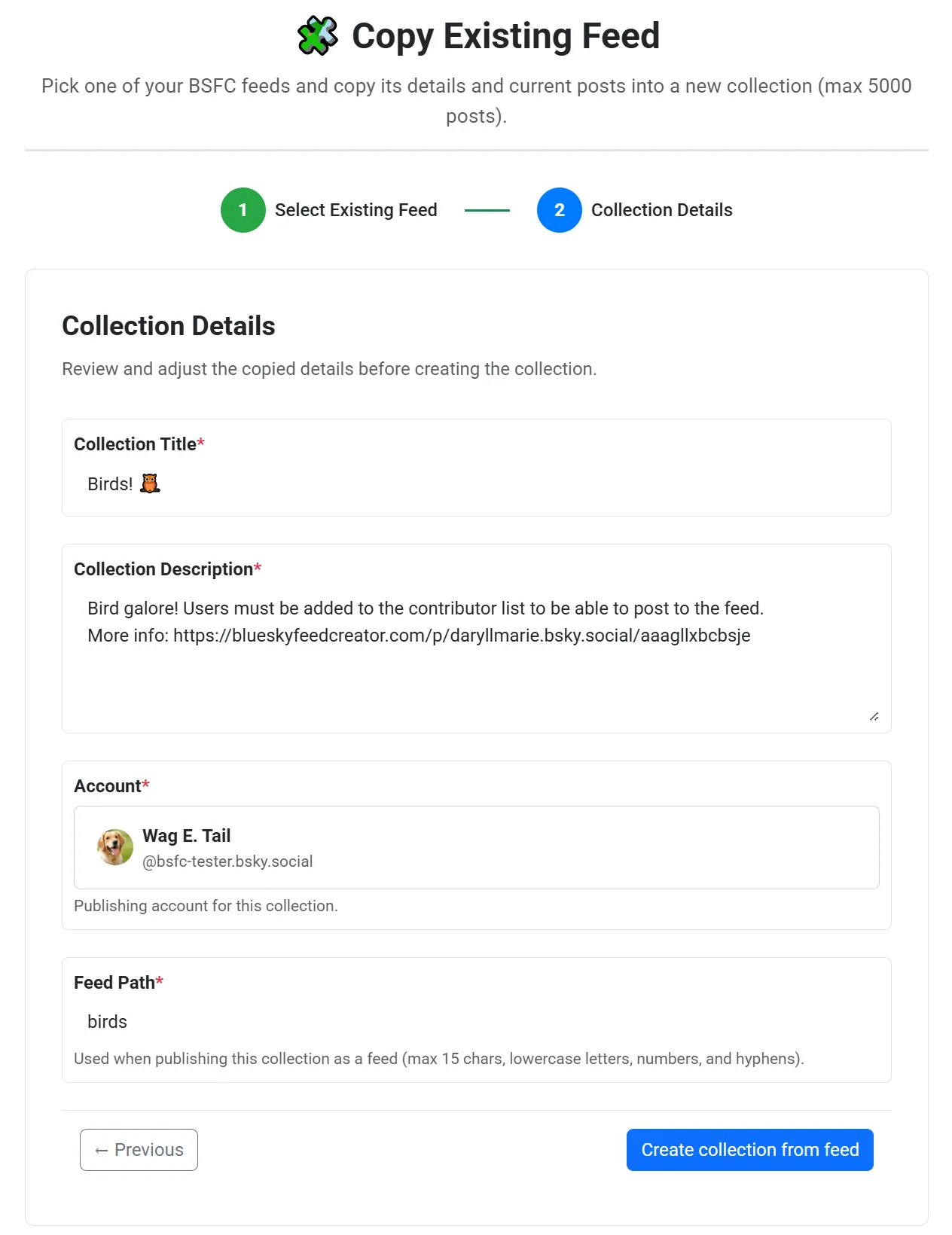
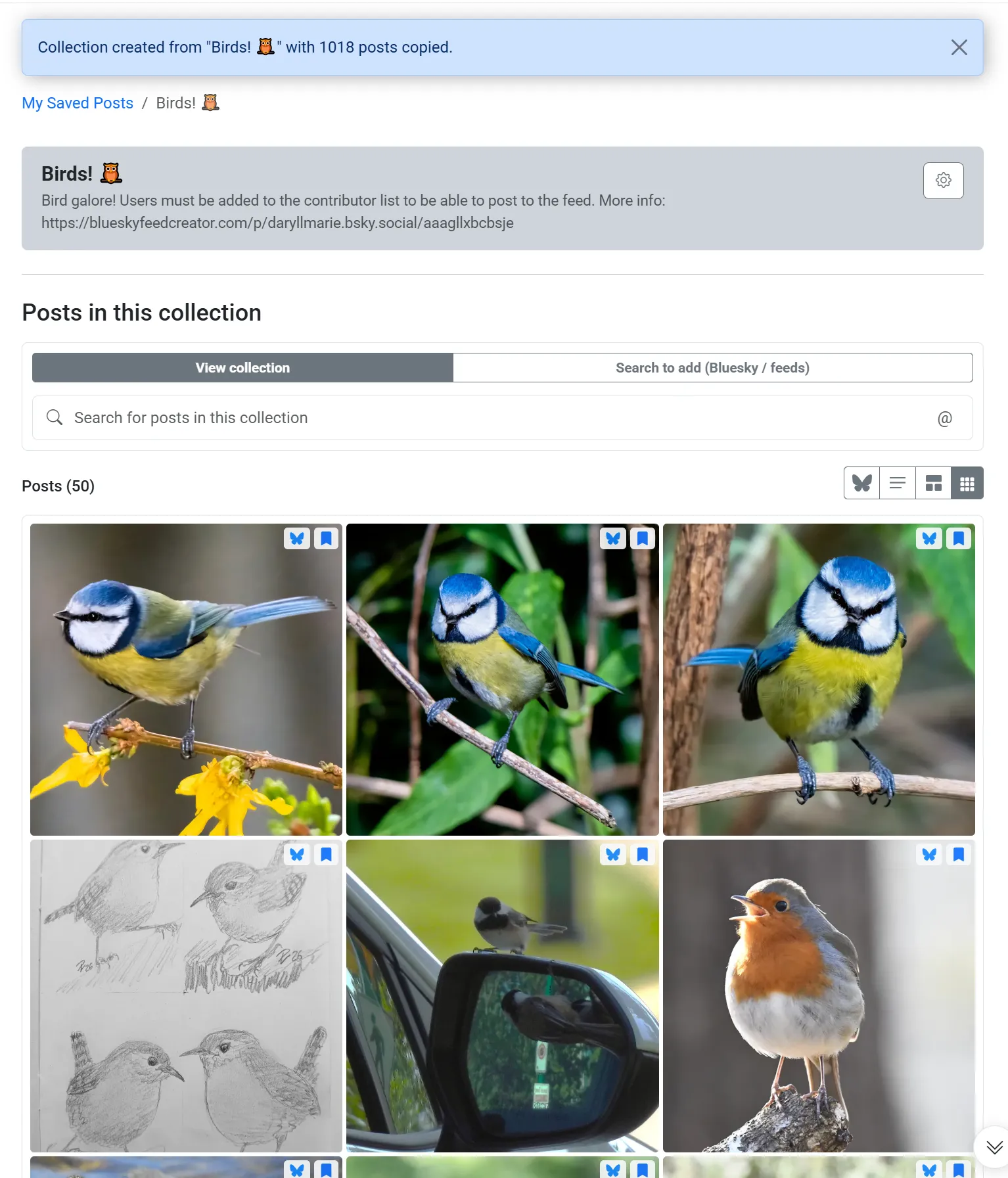
Copying from an existing feed
If you already run a feed in Bluesky Feed Creator, you can start a new collection from that feed’s posts instead of adding them one by one.
When to use this
Section titled “When to use this”- You want to branch from an existing feed’s current posts (a “snapshot” you can edit).
- You want to migrate from an automated feed into a hand-curated collection.
- You want to create a second collection with a different description, ordering, or published feed path, starting from posts you already have.
What gets copied
Section titled “What gets copied”When you use Copy Existing Feed, BSFC copies:
- Collection details (review and edit on the next step): Collection title and description, the publishing account from the source feed, and the feed path (required so you can publish the collection as a feed).
- Posts from the source feed: copies the feed’s currently stored posts, in descending
indexed_atorder (newest first). - Publishing-related settings from the source feed (carried into the new collection):
publish_settings, public page contents, content mode (normal / vertical video / media gallery), and whether promo links were included.
Limits
Section titled “Limits”- Your plan controls how many collections you can create and how many posts you can store per collection.
- The copy wizard also has a hard cap of 5000 posts even on higher tiers.
If the copy would exceed your limits, BSFC will copy only up to your allowed number of posts.
After the copy
Section titled “After the copy”After the copy finishes, you’ll be taken to your new collection.
From there, you can:
- Edit the collection basics (title, description, account, feed path) and save changes.
- Use Search to add to add more posts, or remove posts you don’t want.
- Use Sort order / custom order to control the order posts appear in the collection and (if you publish it) in the published feed.
- Use Publish to Bluesky if you want this collection to appear as a feed on your Bluesky profile.