Publishing your collection
You can keep a collection private or publish it so it appears as a feed on your Bluesky profile.
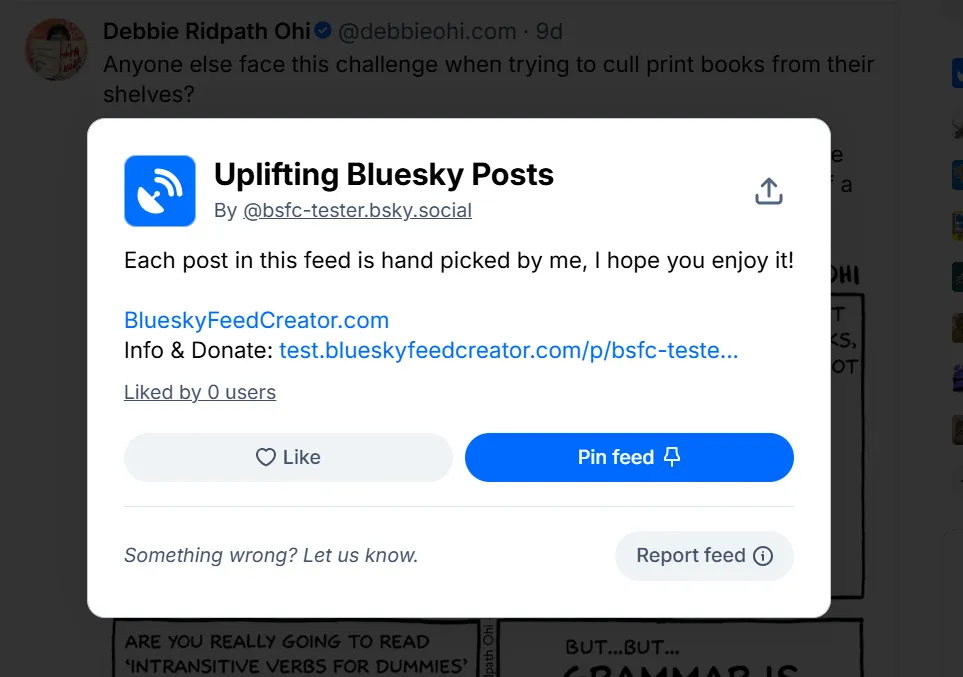
Publishing as a feed
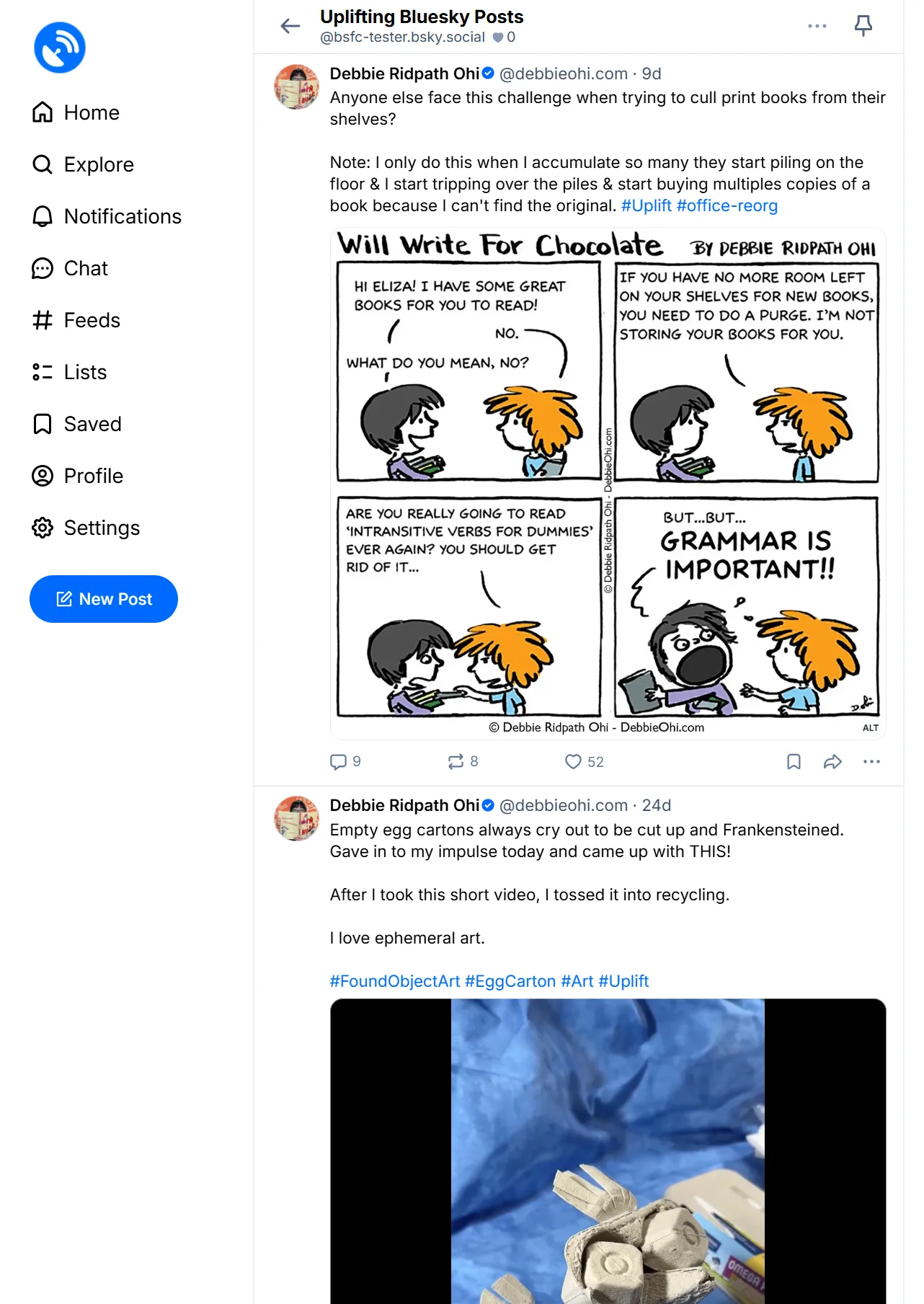
Section titled “Publishing as a feed”When you publish a collection, BSFC will publish it as a Bluesky feed using the Feed path and Account you set in the collection details step.
Open publish settings
Section titled “Open publish settings”- Open the collection.
- Click Publish to Bluesky.
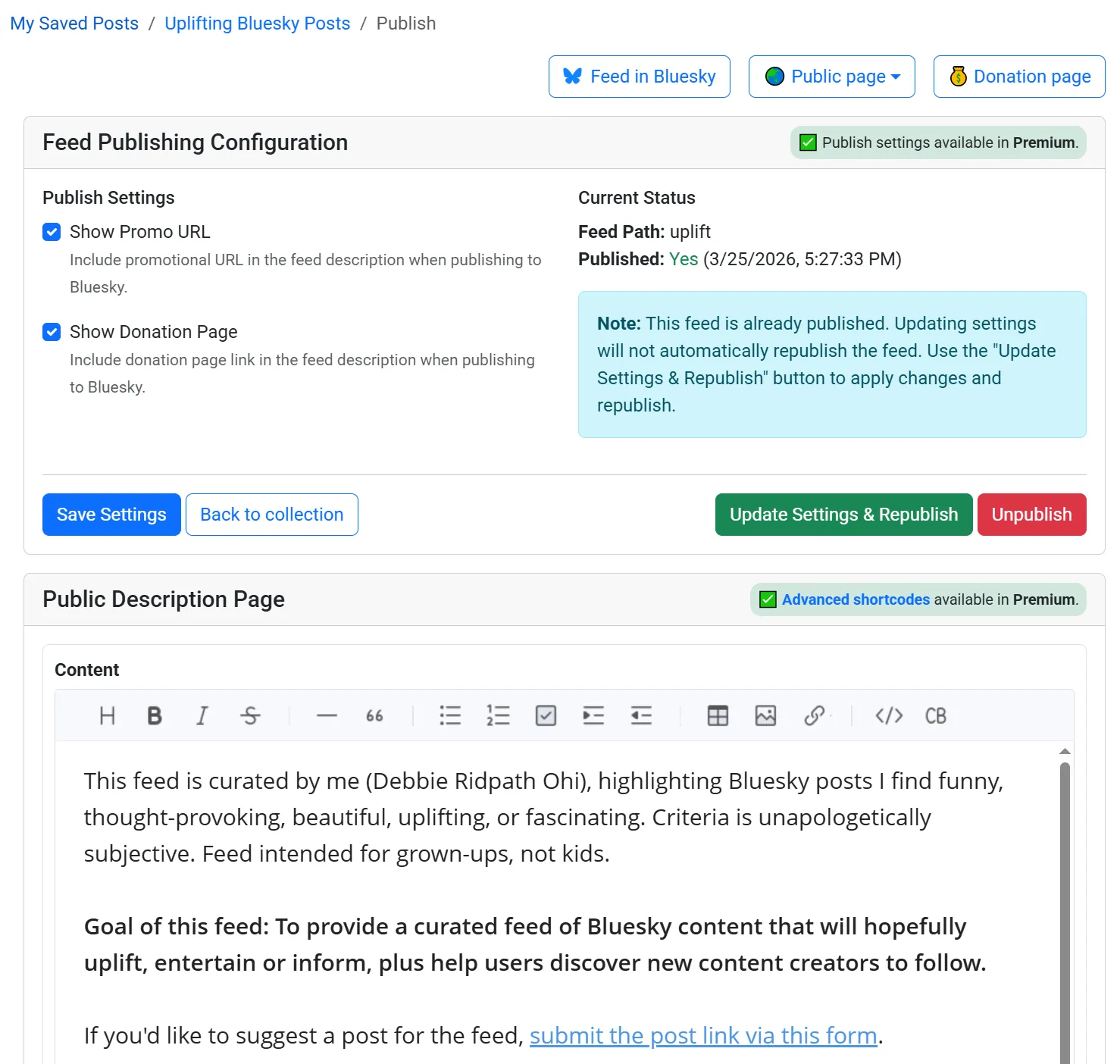
- In Publish Settings, choose what to include in your feed description and edit the public description page.
Publish vs update
Section titled “Publish vs update”- If the collection is not published yet, click Publish Feed.
- If the collection is already published:
- Save Settings updates settings inside BSFC but does not automatically republish the feed.
- Click Update Settings & Republish to apply changes to Bluesky.
Promo and donation links (Publish Settings)
Section titled “Promo and donation links (Publish Settings)”In Publish Settings, you can control whether BSFC includes these links in the feed description when publishing:
- Show Promo URL: adds
BlueskyFeedCreator.com. - Show Donation Page: adds an
Info & Donatelink pointing at your public page#donate.
On the Free tier, promo and donation links are treated as enabled for publishing.
Unpublish
Section titled “Unpublish”If your collection is already published and you are the owner, you can use Unpublish to remove it from Bluesky.
Public page and appearance
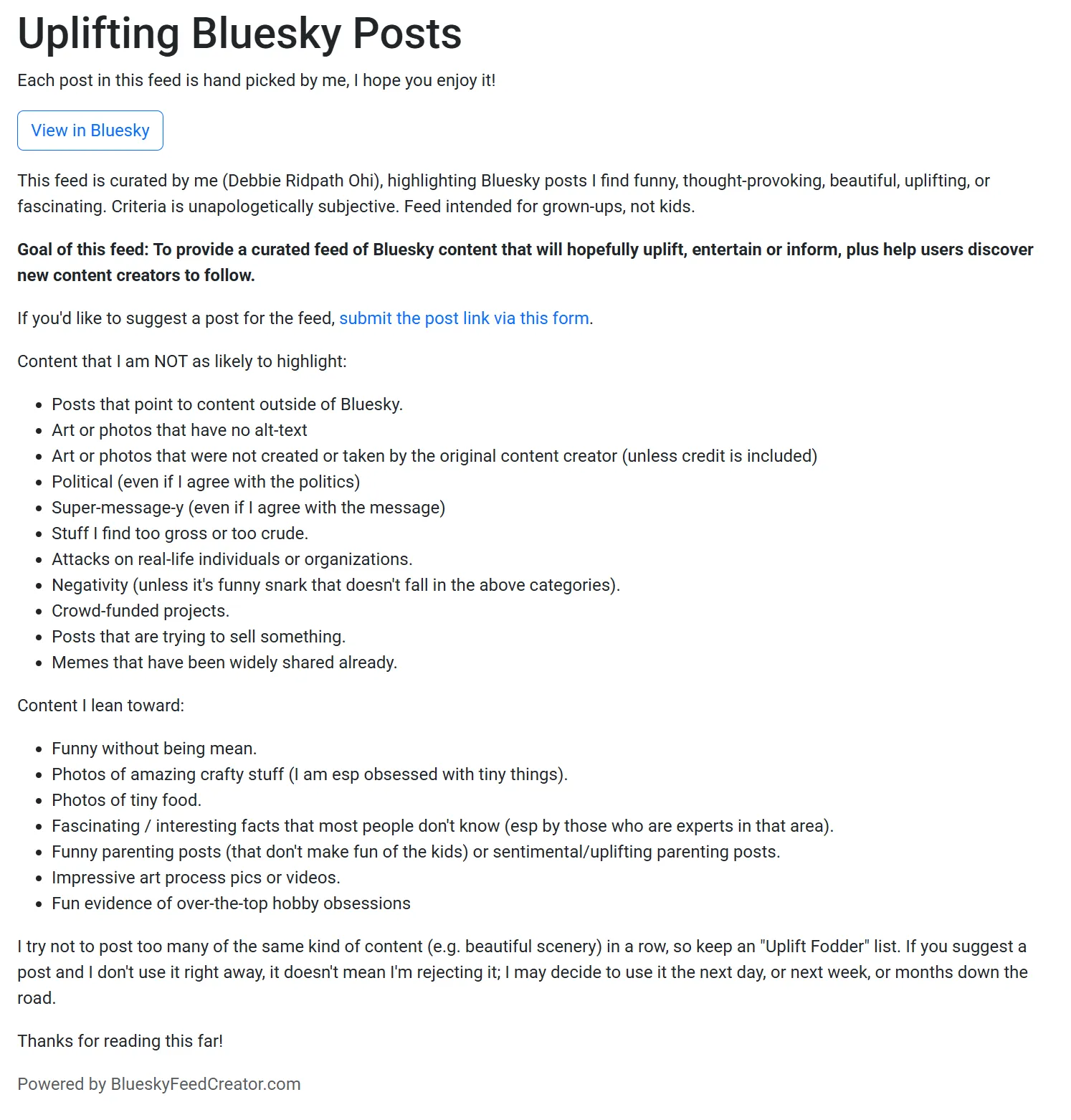
Section titled “Public page and appearance”BSFC maintains a Public Description Page for your published collection/feed.
On the Publish Settings page:
- Scroll to Public Description Page.
- Use the editor to write the content.
- Click Save Public Description Page.
If you already have a published feed and you want the updated description to appear on Bluesky, use Update Settings & Republish after saving.
Permissions and moderation
Section titled “Permissions and moderation”Publishing is tied to:
- The connected Bluesky account selected in the collection setup (Account).
- Ownership: only the collection owner can publish/unpublish from the app.
Collections moderation (what posts are included and their order) happens in the collection itself; publishing mainly controls what other Bluesky users see (feed description + public page content).